How to Fix Oven Display: Step-by-Step Guide
A comprehensive, safety-focused guide to diagnosing and repairing an unresponsive oven display panel. Learn power checks, connector reseating, resets, and when to replace the control board. Based on Oven Cook Pro's 2026 analysis.


By following this guide, you will learn how to diagnose and fix common oven display problems, from verifying power supply to reseating connectors and performing a safe reset. The steps cover flickering, unresponsive touch controls, and error codes, plus safety precautions and advice on when to replace parts or call a pro.
How to Fix Oven Display: What Can Go Wrong and Why
An oven display is more than a pretty interface—it’s the command hub for temperature, timers, and self-cleaning cycles. When it fails, you may see a blank screen, flickering digits, unresponsive touch controls, or random error codes. Understanding the root causes makes it easier to choose the right fix. In many homes, the underlying problems are electrical: a loose connector, a failing display ribbon, or a power supply issue. In others, software glitches or a tripped breaker can render the panel inert. According to Oven Cook Pro, most display problems originate from power delivery and connection issues rather than a dead display panel itself. This section helps you distinguish between simple reset fixes and issues that require component replacement.
Safety First: Power, Grounding, and Personal Protection
Safety should always come first when working with any appliance. Before you do anything, unplug the oven or switch off the circuit breaker that feeds the unit. Wait at least 60 seconds to discharge capacitors and ensure there’s no residual voltage in the control circuitry. If you’re working on a wall-mounted or hard-wired oven, shut off the dedicated breaker and test the outlet with a voltage tester to confirm zero power. Wear eye protection and use insulated tools to minimize the risk of shock or accidental short circuits. If you smell burning or see smoke, stop immediately and call a professional.
Tools, Materials, and Setup You’ll Need
Prepare a basic, non-metallic work area with good lighting. Gather a screwdriver set (Philips and flat-head), a flashlight, a small container for screws, and a digital multimeter or voltage tester if you plan to test power rails. Keep your model number handy for ordering parts. Optional but helpful items include a camera or phone to document connections before you disconnect anything, and a soft magnet or magnetic tray to keep small fasteners organized.
Accessing the Display: How to Safely Reach the Control Panel
Gaining access to the display usually means removing a back panel or control housing. Start by removing the exterior panel screws and gently prying the plastic cover away from the frame. Use a non-conductive tool to avoid scratching the casing. If the oven is built into cabinetry, you may need to remove adjacent panels to access the display module. As you work, keep track of all screws and connectors so you can reassemble accurately. Document each connector’s orientation with a photo for later reference.
Diagnosing Common Causes: From Power to Cables
Inspect the display ribbon cable and any nearby connectors for looseness, corrosion, or visible damage. Reseat any loose connections by unplugging and firmly reinserting connectors until they click. Look for scorched marks, melted insulation, or bent pins, which indicate heat damage or improper seating. If the display is blank but the control panel responds to button presses (by lights or sounds), the issue may be within the display module itself or its power rail rather than the main board. Use the model manual to locate test points and match connector colors, which helps prevent misconnection.
Resetting, Testing, and Verification: The Practical Path
A trained homeowner can perform a safe reset to restore default settings and clear glitches. Start by powering down completely, then reconnect power after a minute. Some ovens require a specific button sequence to reset; consult your manual for model-specific steps. After reseating cables and performing a reset, plug the unit back in and observe whether the display lights up, responds to touch, and correctly shows temperature and time. If the display still behaves erratically, it may indicate a failed display module or control board that needs replacement.
When to Replace vs. Repair: Making the Right Call
If reseating connectors and resetting do not restore functionality, you’ll need to decide between replacing the display module, the control board, or the entire unit. Costs vary by model and part availability, and installation complexity can influence whether DIY repair is practical. Gather the exact model number, part numbers, and your warranty status before requesting estimates. In many cases, manufacturers offer OEM replacement parts that ensure compatibility and reliability. If you’re unsure, a professional diagnosis can provide a clear, itemized repair plan.
Maintenance Practices to Extend Display Life
Regular checks can prevent future display failures. Clean dust from the display housing and vents, avoid moisture near electrical panels, and protect the control area from heat sources that could degrade cables. Periodically inspect visible connectors and reseat any that appear loose. Keep the oven’s software up to date if the manufacturer provides updates via a settings menu or a firmware tool. Finally, maintain a log of any display anomalies to help a technician diagnose future issues faster.
Tools & Materials
- Screwdriver set (Philips and flat-head)(Assorted sizes; remove exterior panels without stripping screws)
- Flashlight(Bright, focused light for inspecting connectors)
- Digital multimeter or voltage tester(For checking power rails at the display connector (model dependent))
- Camera or phone for documentation(Capture connector orientations before unplugging)
- Spare display ribbon cables or replacement control board (optional)(Only purchase with model compatibility)
Steps
Estimated time: 60-90 minutes
- 1
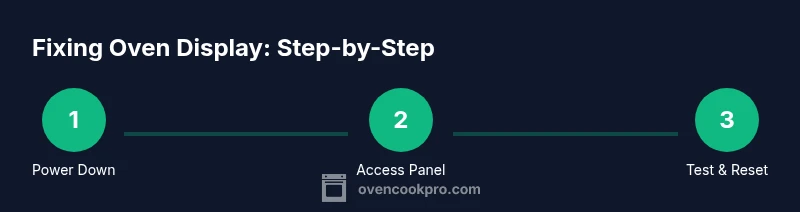
Power down and verify isolation
Unplug the oven or switch off the dedicated circuit breaker. Confirm no power is present with a tester if possible, and wait 60 seconds for capacitors to discharge. Why: ensures personal safety and prevents shorts during disassembly.
Tip: Label or photograph the power source to avoid reconnecting to the wrong circuit. - 2
Gain access to the display
Remove the outer panels to reach the control housing. Use insulated tools and store screws in a labeled tray. Why: a loose panel can cause intermittent display behavior or short circuits.
Tip: Keep small screws in a magnetic tray to avoid losing them. - 3
Inspect and reseat connectors
Carefully unplug and reinsert the display ribbon cable and adjacent connectors. Look for bent pins or signs of wear. Why: loose connections are a leading cause of flickering or dead displays.
Tip: Do not yank cables; apply even pressure to seat connectors fully. - 4
Check for damage and test power rails
Visually inspect cables for damage and, if you have a multimeter, test the display power rail at the connector following the manual’s points. Why: damaged insulation or incorrect voltage can prevent the display from powering correctly.
Tip: If you see scorched insulation, stop and replace the component; this is a safety hazard. - 5
Perform a safe reset
Power down again for 60 seconds, then reapply power and, if required by your model, perform the model-specific reset sequence from the manual. Why: resets can clear minor firmware glitches.
Tip: Document any required key sequences in a notes app for future use. - 6
Evaluate the result and plan next steps
Observe whether the display responds correctly to touch, shows temperature readings, and updates time. If issues persist, compare part numbers for a replacement display or control board and consider professional service.
Tip: Keep a repair log with dates and part numbers to simplify future service.
Questions & Answers
What are the most common causes of a dead oven display?
Most dead displays result from power delivery problems or loose connectors. Visual damage to cables or a failed ribbon cable is also common. A full diagnostic helps determine whether the issue is electrical, mechanical, or software-related.
The most common causes are power delivery problems or loose connectors. A quick diagnostic can reveal whether the issue is electrical, mechanical, or software-related.
Is it safe to fix an oven display myself?
DIY fixes are possible for basic issues like loose cables and simple resets, provided you never work with live power. Always unplug the unit and consult the manual for model-specific reset steps. If you see burnt components or smell smoke, stop and call a professional.
DIY fixes are possible for simple issues if you unplug first and follow the manual. If you smell burning, call a pro.
How do I know if I should replace the display or the control board?
If reseating cables and resetting do not restore function, a faulty display module or control board is likely. Compare part numbers from the manufacturer and get a professional diagnosis when in doubt. Replacement decisions depend on availability, cost, and reliability.
If resets don’t help, the display or control board may be bad. Check parts availability and cost, and consider a professional diagnosis.
Will resetting fix all oven display issues?
Resetting can clear firmware glitches that cause temporary unresponsiveness, but it won’t fix physically damaged cables or burnt components. Use resets as a first step, then move to inspection if problems persist.
Resetting can clear glitches, but it won’t fix damaged cables. If problems stay, inspect components.
How long does a typical professional repair take?
Repair duration varies by model and part availability. A professional can provide an itemized estimate after diagnosing whether the issue is a display panel, a control board, or a wiring problem.
It depends on the model and parts, but a pro can give you an estimate after diagnosing the issue.
Watch Video
Main Points
- Power down safely before opening the panel
- Loose cables cause most display issues
- Resetting the system can fix minor glitches
- Replace parts only after a thorough diagnosis
- Document steps for warranty and future maintenance